
JobBag + Weel CSV Upload Process
This guide takes you through the process of getting your Weel transactions into JobBag. We’ll show you what information to enter in Weel, how to check and prepare your CSV file, import the transactions, create payments, and reconcile the Weel bank account.
Step 1: Card Holders enter transactions into Weel
Advise Employees to use the following fields to capture the relevant JobBag information
Account ID is used to record the JobBag Kind Code.
Budget/Subscription is used to record the JobBag Job Number.
Job number and Kind code need to match exactly what is in JobBag.
Step 2: Download and Prepare CSV File for Import
Before importing the Weel CSV into JobBag, check:
- Mapping Requirements: Match the Columns in the csv file (See below)
- Account ID: Contains the JobBag Kind Code
- Budget/Subscription: Contains the JobBag Job Number
- Overhead jobs: Use Overhead Kinds
- Client jobs: Use Job Cost Kinds
- Team Member: Add descriptions (if applicable)
The CSV is now ready to import into JobBag.
Mapping Requirements
CSV columns should match below screenshot

Use the following columns to provide the JobBag information:
| WEEL Column | JobBag Information |
|---|---|
| Account ID | JobBag Kind Code |
| Budget/Subscription | JobBag Job Number |
| Team Member | Transaction Description - Can we added along side the team members name |
Overhead vs Client Jobs
Make sure you use the correct Kind Codes for the type of job:
- Use Overhead Kinds for overhead jobs
- Use Job Cost Kinds for client jobs
This ensures the WEEL transactions are posted to the correct JobBag accounts and jobs.
If You Want to Import the Description (If applicable)
If you want to record a transaction Description in JobBag use the Team Member column.
If you want the transaction description to be recorded in JobBag, copy the information from the Description column into the Team Member column before deleting the Description column.
Check Every Transaction
Before importing the file, make sure every transaction has:
- A JobBag Kind Code in the Account ID column.
- A Job Number in the Budget/Subscription column.
Transactions without these details may not import correctly into JobBag.
Remove Custom Columns (If applicable)
If you are using custom fields in WEEL, these may need to be removed from the CSV before importing it into JobBag.
Some examples include:
- Description
- Approved By
- Job Number – if used, you can copy and paste the Job Number column into the Budget/Subscription column, provided it is Column 10 in the CSV file.
- Attendees
- Invoice Number
If You Use the Weel Job Number Custom Field
If you have entered JobBag job numbers into the Job Number field in Weel:
- Copy the job numbers from the Job Number column.
- Paste them into the Budget/Subscription column.
- Delete the Job Number column.
Step 3: Import the transactions into Jobbag
Go to: Accounts > WEEL > Select Key:CSV > Select File: > Import
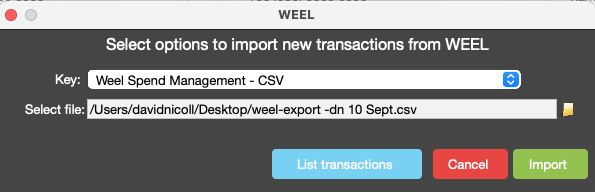
Review Transactions
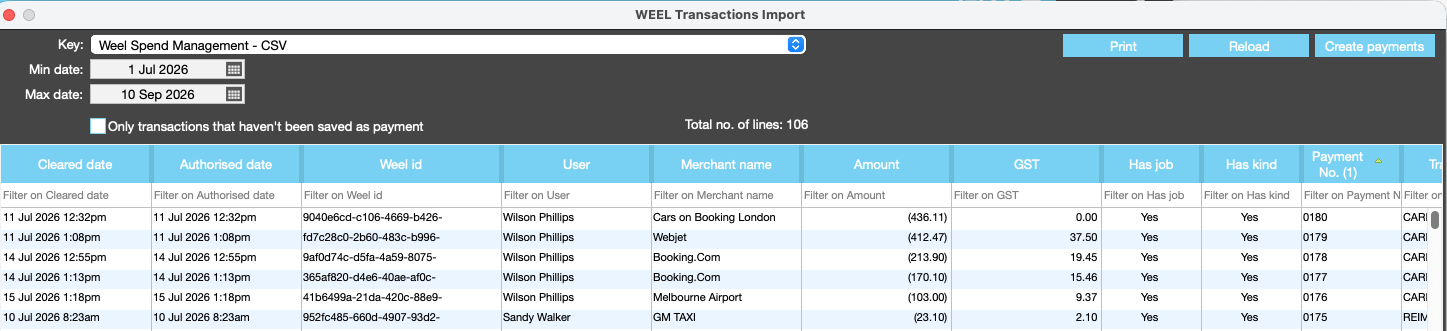
- Downloaded transactions appear in the Weel window
- The Job and Kind columns will show YES if valid, or NO if missing
- Payments can only be created when both the Has job and Has kind field shows YES
- If you need to update or fix a transaction do that back in the csv file and then upload the file again. Repeat this until the Has job and Has kind fields show YES
- You can Right click > Set columns to configure the Weel Transaction import window
⚠️ Note: Payments can only be created when both Job and Kind columns are Yes

Step 4. Create Payments
Click Create Payments ( Top Right) to initiate processing for valid transactions.

Once payment is created the payment number will appear in the Payment No column
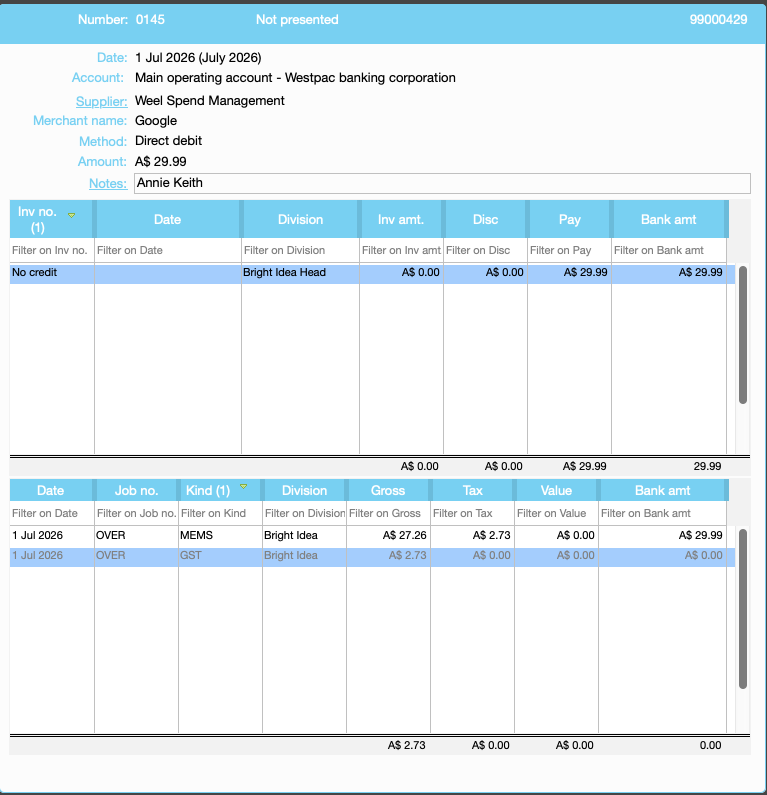
Payments are created using the Weel supplier and can be found in the browse payments window
Step 5. Reconcile the Weel Bank Account
- Go to:
Accounts > Bank Reconciliation > Weel Bank - Import the bank statement.
- Matched transactions will automatically turn green.

Note: Transactions which have both the Job and Kind will auto match
Organise training or Need more help?
Please contact support call 02 8115 8090 or email support@jobbag.com