
Recommended Leave Process
Recommended Leave Process
This article outlines the recommended process for requesting and approving leave in JobBag using the Active Diary.
Step 1: Employee submits a leave request
Employees apply for leave via the Active Diary.
Navigate to: JobBag menu > Active Diary > Calendar icon (Top Right)
- Click the Calendar icon.
- Select the Leave Type.
- Enter the Reason for leave.
- Select the relevant leave dates.
- Choose who the approval request should be sent to.
- Click Submit.
📌 Note: An email approval request is automatically sent to the selected Approver.

Click here for more option on how to request leave
Step 2: Manager receives approval request
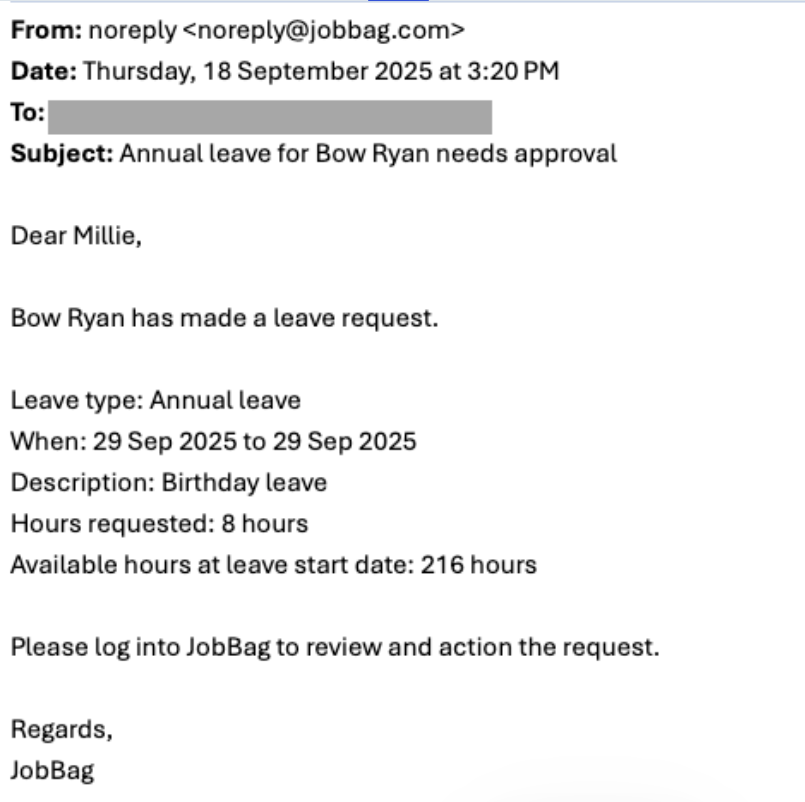
The Approving Manager receives an email notification advising that a leave request is awaiting approval.
Before approving, the Manager should:
- Confirm the employee has sufficient leave balance
- Check the Available hours at the leave start date
Step 3: Manager approves leave in JobBag
The Manager logs into JobBag to review and approve the leave.
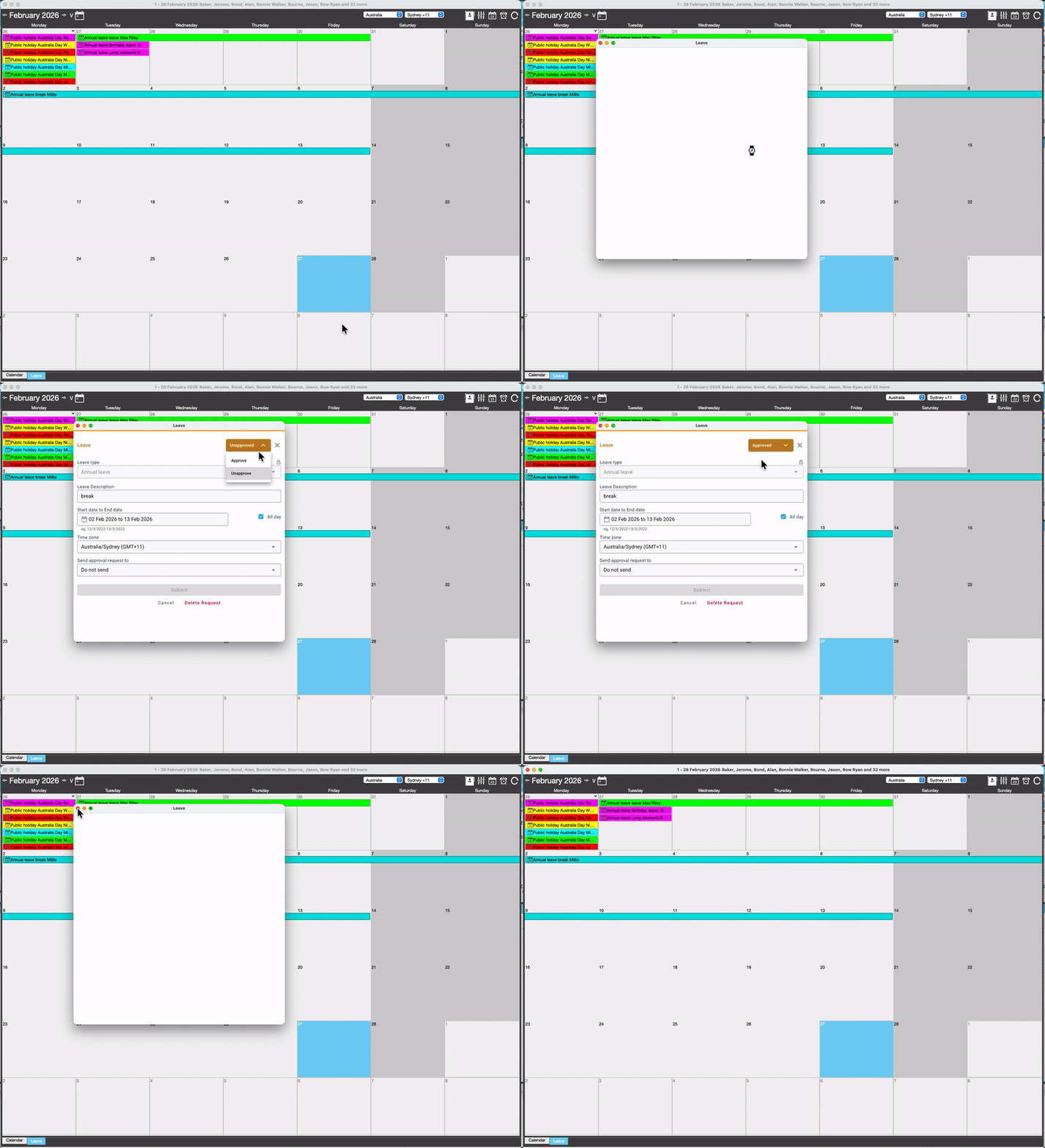
Navigate to: JobBag menu > Active Diary > leave tab
- Review employees who have applied for leave.
- Double-click the leave entry.
- Change the status to Approved (top-right corner).
- Save the changes.
📌 Note: The Leave tab must be enabled for this step.
If you do not have access to the Leave tab, please contact JobBag Support or your Payroll Administrator.
Click here for more options on approving leave
Organise training or need more help
Please contact support 02 8115 8090 or email support@jobbag.com