
Creating Media Supplier invoices (NEW)
You can create a media supplier invoice in JobBag using a Media Purchase Order (PO).
There are several ways to create a media supplier invoice. The following two methods are the recommended options.
How to Create a Media Supplier Invoice
Choose either of the following navigation options to create a new media supplier invoice.
Option 1: From Costings – Supplier Invoices
Navigate to: Costing menu > Supplier Invoices > New > Media Invoice
Option 2: From the Supplier Invoice Tab in the Jobs Window
Navigate to: JobBag > Jobs > Find Job > Supplier Invoice Tab > New > Media Invoice
Once you have opened the Media Invoice window, follow the steps below. The process is the same for both options
Processing the Invoice
- Enter the Media Supplier Name (e.g. Facebook).
- Select the relevant media PO that the invoice refers to. Use the search filters or enter the PO number.
- Update amounts, if applicable.
- Include any bonus spot PO lines. These lines typically have a value of $0.00. Ensure all associated bonus spot lines are selected as part of the invoice processing.
- Enter the supplier invoice number.
- Check that the totals in the footer match the totals in the header.
- Save the invoice.
- Confirm that both the invoiced media lines and associated bonus spot lines are marked as Complete.
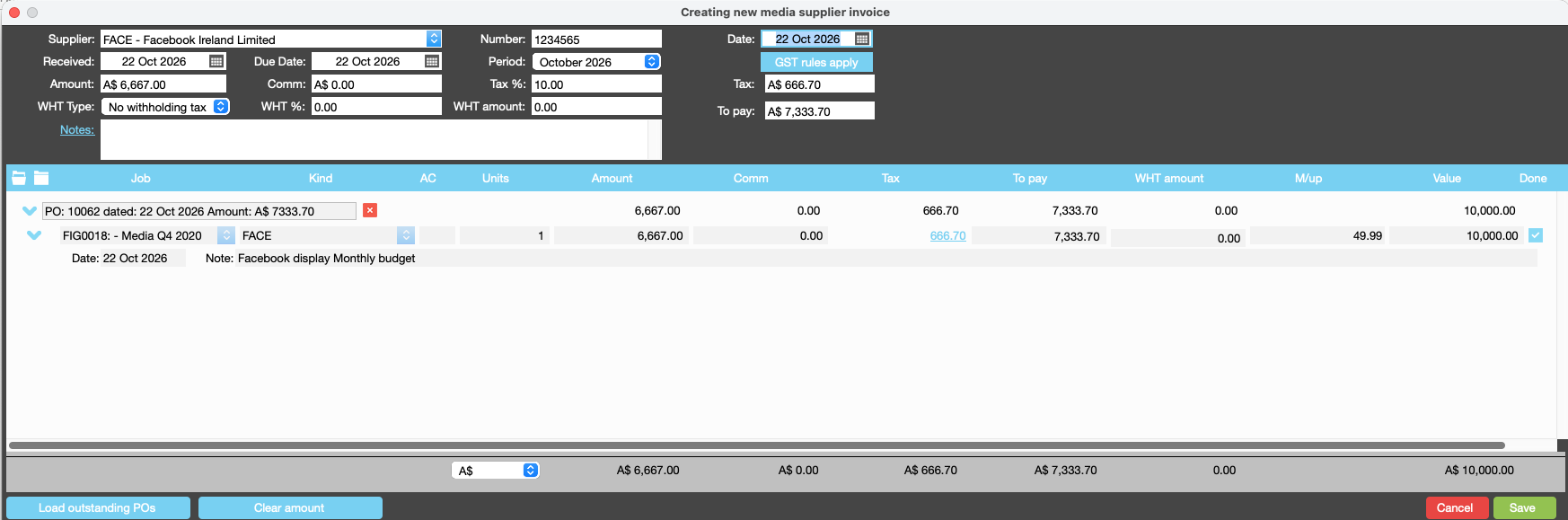
Entering Invoice Details
Tab through the fields in the Media Invoice window to move between fields and enter the required information. Check that all relevant details have been entered and that the totals in the footer match the totals in the header before saving the invoice.
Processing Bonus Spot PO Lines
Bonus spot PO lines typically have a value of $0.00, but they must still be included when processing the monthly media supplier invoice.
Ensure all associated bonus spot lines are selected during invoice processing. This allows the lines to be marked as Complete and prevents them from remaining outstanding on the Purchase Order.
Organise training or need more help
Please contact support 02 8115 8090 or email support@jobbag.com