
How to process a Resignation payslip
How to Process a Resignation Payslip
Use this process to create a final payslip when an employee has resigned.
Step 1: Enter Final Date in Payroll Header
-
Navigate to the employee’s Address Book record.
Go to the Employment / PAYG tab.
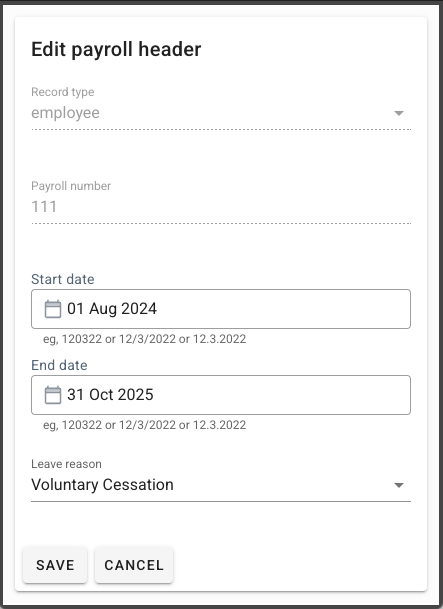
Edit the Payroll Header and enter:
-
The employee’s End Date
The Leave Reason
- For resignations, select Voluntary Cessation (V)
-
- Saving the payroll header will automatically update the employment record with the employee’s last day of work.
Step 2: Create the Manual / Final Payslip
Navigate to: Payroll > Step 2: Manual / Final Pays
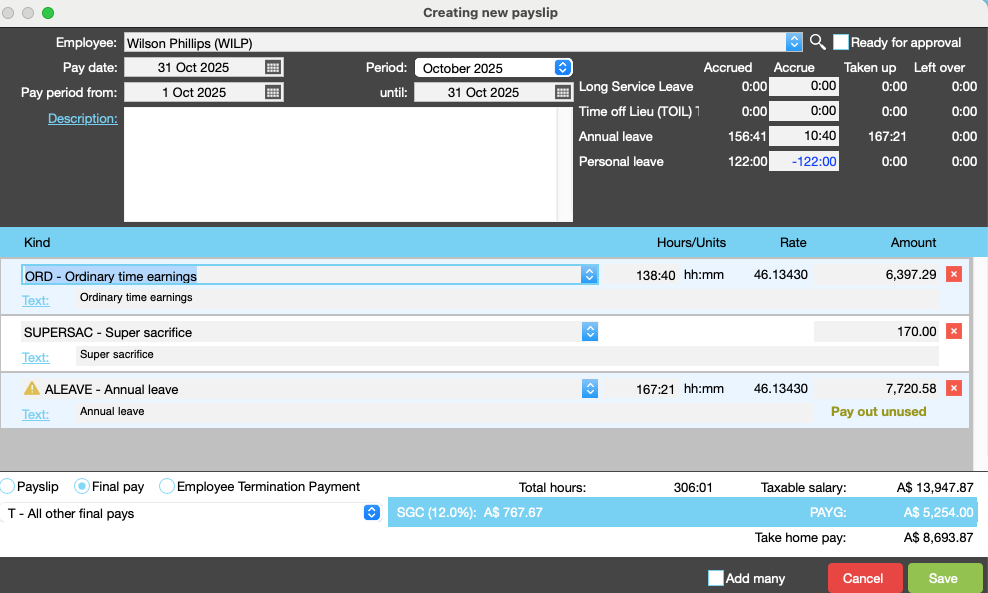
Enter the following details:
| Field Name | Description | Payslip Entry |
|---|---|---|
|
Employee |
Select the employee. |
Wilson Phillips |
|
Pay date |
Enter Payment Date |
31/10/2025 |
|
Period |
The pay date generates a default period. You may choose a prior period if you are processing for a previous month. |
October 2025 |
|
Pay period from |
JobBag fills this automatically (should be the day after the last payslip). Confirm the date is correct. |
01/10/2025 |
|
Pay period until |
JobBag fills this automatically with the last day of employment. Confirm the date is correct. |
31/10/2025 |
Step 3: Generate the Final Payslip
- Tab through the fields until JobBag generates the payslips lines
- Adjust ORD - Ordinary time earnings depending on the days worked (if required)
- Outstanding leave
Step 4: Select Final pay
- Select final pay radio button
- Any unused Annual and Long service leave will populate the payslips lines
- Select a Reason, usually:
- “T – All other pays”
Important Notes
- Unused leave will automatically be added to the payslip.
- Tax on unused leave is calculated at marginal tax rates.
- Personal leave should be zeroed out ( top right) as it is not paid on termination.
Off - boarding Employees
When an employee or freelancer leaves your organisation, follow these steps to off-board them in JobBag.
Off - boarding Employees
Organise training or need more help
Please contact support 02 8115 8090 or email support@jobbag.com